Installer
RecommendedInstalls for your Windows user account and adds Start menu and desktop shortcuts. It also includes an uninstaller.
IPbind-Installer-v2.3.122.exe SHA-256 checksumIf you frequently connect a laptop to PLCs, signal controllers, or other industrial automation equipment, you know the routine. You open the adapter settings, type a static IP address, test it, and do it all again for the next device.
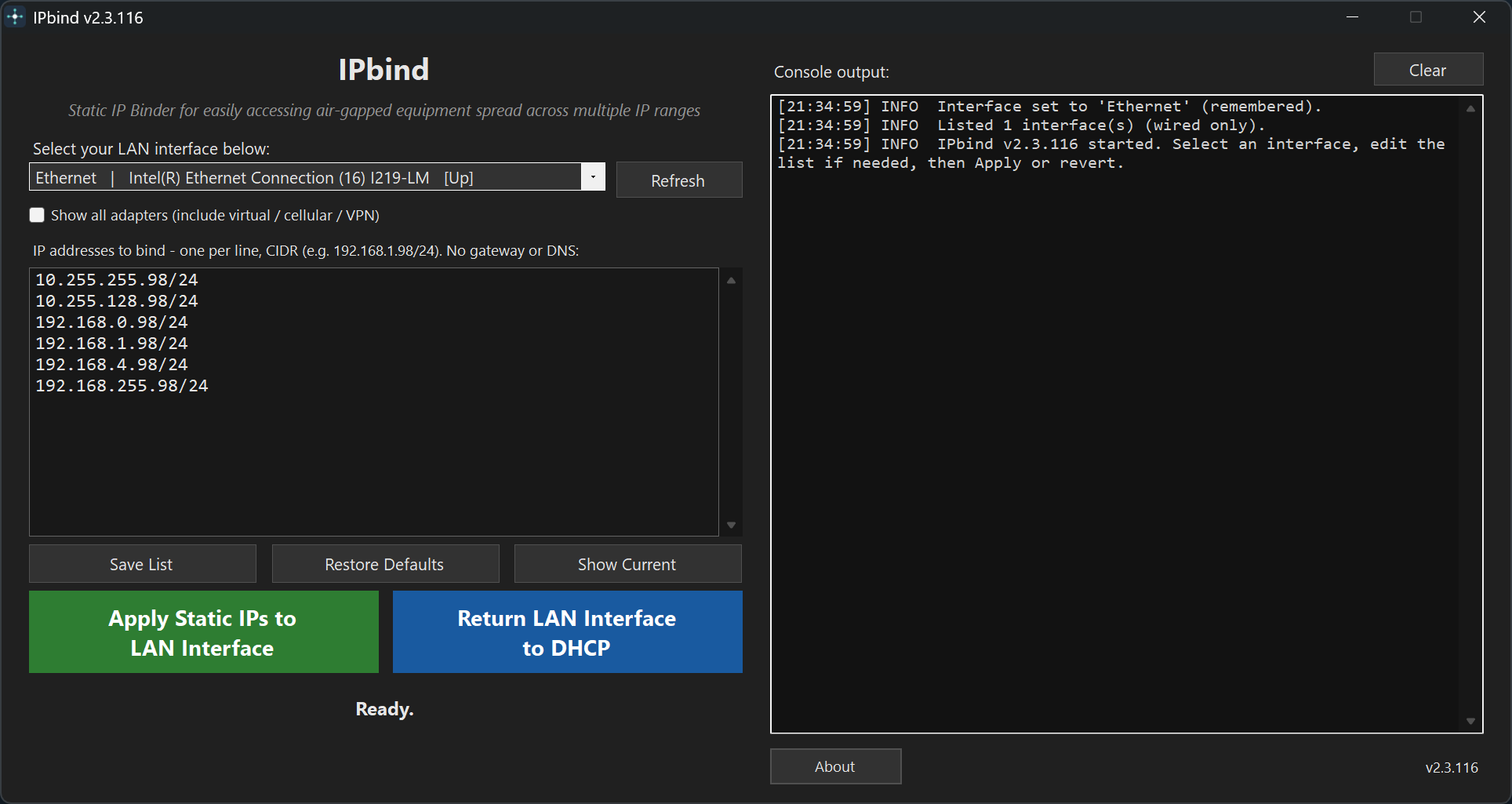
IPbind binds every IP address you need to one adapter at once. When you're done, one more click puts the adapter back on DHCP.
How it works
Here is what it takes to reach devices on two or three subnets from one laptop.
Then you do it all again at the next site.
Your list is ready for the next site. Edit it once and it stays that way.
Features
Enter one IP address per line in CIDR form, such as 192.168.1.98/24. IPbind applies the whole list in a single netsh batch, then checks that each address is on the adapter.
Your adapter and your list of IP addresses are saved in your Windows profile. The next time you open IPbind, it's ready to go.
By default, the list shows only wired Ethernet adapters, so you're less likely to pick the wrong one. Tick Show all adapters to include virtual, cellular, and VPN adapters.
One click turns DHCP back on and resets DNS. The console tells you when the adapter gets a new DHCP address.
The console lists each address applied or skipped, with the reason. If something fails, you can see why.
Restore Defaults adds back any missing default addresses and keeps the ones you added. If you never edited the list, new defaults arrive with updates.
Optional
Most isolated equipment only needs an address on its own subnet. Sometimes one device has to reach something beyond it, such as a server behind a router on the isolated network. For that, turn on Gateway support, choose the address, and enter its gateway and up to two DNS servers.
 IPbind

Version 2.3.122. Both downloads are the same app.
Installs for your Windows user account and adds Start menu and desktop shortcuts. It also includes an uninstaller.
IPbind-Installer-v2.3.122.exe SHA-256 checksumA single .exe file with nothing to install. Run it from a folder or a USB drive.
IPbind-Portable.exe SHA-256 checksumIPbind asks for administrator approval when it starts, because Windows requires it to change adapter settings. IPbind can update itself from About. Each update is checked against its SHA-256 checksum before it replaces the app.
Privacy
IPbind never uploads your list of IP addresses, your adapter choices, or anything that identifies your computer. Your settings stay in your Windows user profile.
The only network request IPbind makes on its own is an update check when it starts. It asks for the latest version number. The request goes to a small Cloudflare Worker run by the developer. If the Worker can't be reached, IPbind asks GitHub instead. The Worker adds one to a daily count of update checks by country. It doesn't store your IP address or user agent. As with any web request, Cloudflare or GitHub sees your IP address when the connection is made.
You can turn off the check at launch when you install IPbind. In the portable version, use the checkbox in About. With the check off, IPbind only checks when you click Check for updates in About. Updates download only from the IPbind GitHub repository, and only after you choose to update.
IPbind applies and removes addresses on your computer with netsh. None of that is sent anywhere.
This page loads no trackers, fonts, or scripts from other sites.
FAQ
Yes. Windows only lets administrators change adapter settings, so IPbind asks for approval each time it starts.
The adapter you bind stops using DHCP until you click Return LAN Interface to DHCP. Your other adapters, such as Wi-Fi, keep working. IPbind adds no gateway or DNS unless you turn on Gateway support, and even then the gateway has a low priority.
IPbind treats an address without a prefix as /24. You can enter any other prefix, such as /16 or /30.
If you never changed the default list, IPbind switches it to the new defaults. If you changed anything, your list stays exactly as you left it.
Most USB Ethernet adapters appear in the wired list. For Wi-Fi or anything else, tick Show all adapters.
Yes. It's free and open source under the MIT License. The source code is on GitHub.